Posts

Showing posts with the label Power BI

POWER BI DAX : Complex two layered Average Calculation

Image
Hi All we got a scenario where we have a table with daily granularity and we need to aggregate weekly taking denominator column MAX and numerator column relative SUM and create ratio (percentage). For aggregation above week we need to take SUM of denominator .so layer 1 within week and layer 2 above week format and we need to take averages for the percentage on both layers if you see the image , we need to represent data on weekly basis and  issue here is  [weekly freqency target] is present in all the records of the week in a table, in  above report each row represents weeks data ,so we have to take only one value from those 7 days , so here we need to take Max of that value Compliance %  = Reading towards Complaince/ weekly frequency target Another challange here is Reading towards complaince  may be greater than weekly frequency in those cases we need to consider only 100 % example               Reading toward...
PowerBI : How to Calculate number of WorkingDays between 2 given dates

Image
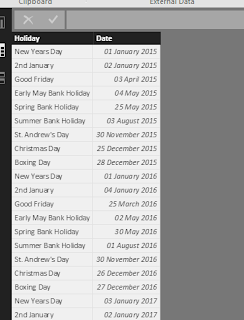
Here i am going to explain how to calculate number of working dates between to given dates. In my approach i am taking a table called Holidays which contains holidays as shown below Once you have this table , we need to use this table in our Datetime table to calculate IsworkingDay column. Now give the relationship between Datetime and Holidays tables as shown below DAX :  IsWorkingDay = IF (NOT(DateTime[Day of Week]= "Saturday" || (DateTime[Day of Week]= "Sunday")) && COUNTX(RELATEDTABLE(Holidays),2)<1,1,0) Now you can create calculated column or measure  Total Working Days Column =  SUMX (     FILTER (         'Datetime',         'Datetime'[Date] >= Tasks[Input Start Date]             && 'Datetime'[Date] <= Tasks[Input End Date]     ),     'Datetime'[IsWorkingDay] ) Total Working Days Measure =...

How to connect Azure SQL database from PowerBI Desktop

Image
1.        Please check Azure portal to get the Server and Database name based on the database connection strings shown below. 2.        Open Power BI Desktop 3.          3.  Select getdata and search for azure and from the list select azure sqldatabase  and click Connect 4.        Provide the Server nameand database name collected from azure portal

PowerBI :Best Method for Versioning Power BI Files and Tracking Incremental Changes to the report

For PowerBI pro License we have the feature called Groups . When we aCreate Group in Power BI ,It  automatically creates  a folder in OneDrive for Business for that Group . The best method for deploying  power BI Report/Dashboard fromPowerBI desktop to PowerBI  service is 1. Once the Report is finished in PowerBI desktop save the file. 2.Place that  .pbix file in Group folder in onedrive for Business 3. From PowerBI service Connect to the new file which is in Onedrive for that group 4.Later if you made any changes to the report , you can place the modified .pbix file in one drive it automatically reflects the change to powerBI when refersh happens

How to Add power BI tiles in CRM Online

1. ADMIN of CRM online can select this feature to insert  Power BI Tiles in CRM dashboards 2. Go to Seeting --> System -- > Administrration --> system Settings 3. Go to Repoting Tab in system settings 4. Allow Power BI tile embeeding option to Yes 5. Go to Sales --> Dashboards  --> New 6. Select the layout whihc you want to insert 7. Now Click on Power BI Tile Tab ( appears after you perform step 4 ) 8. now you are able to see all the dashboards and tiles you have permission in power BI site 

Simple steps to Connect Power BI Reports from CRM online dashboards

Step 1 : Create a new web resource in CRM onine ( web resouces is under components is CRM solution) Step 2 :  In new Web Resource give the fallowing details         General          Name : PowerBI_Interactive          Displayname : Power BI CRM Dashboard          Description : CRM Dashboards using power BI     Content           Type : webpage (HTML)           Language : English              URL: iframe code to ccess powerBI reports , by using iframe code you can access power BI reports from any web page where it is used once web resource is created crosscheck if it is listed down in web resources section step 3 : In Dasbords Tab of CRM online  , create a new dashboard and link the web resources created previously Step 4 : save and publish the dashboard